
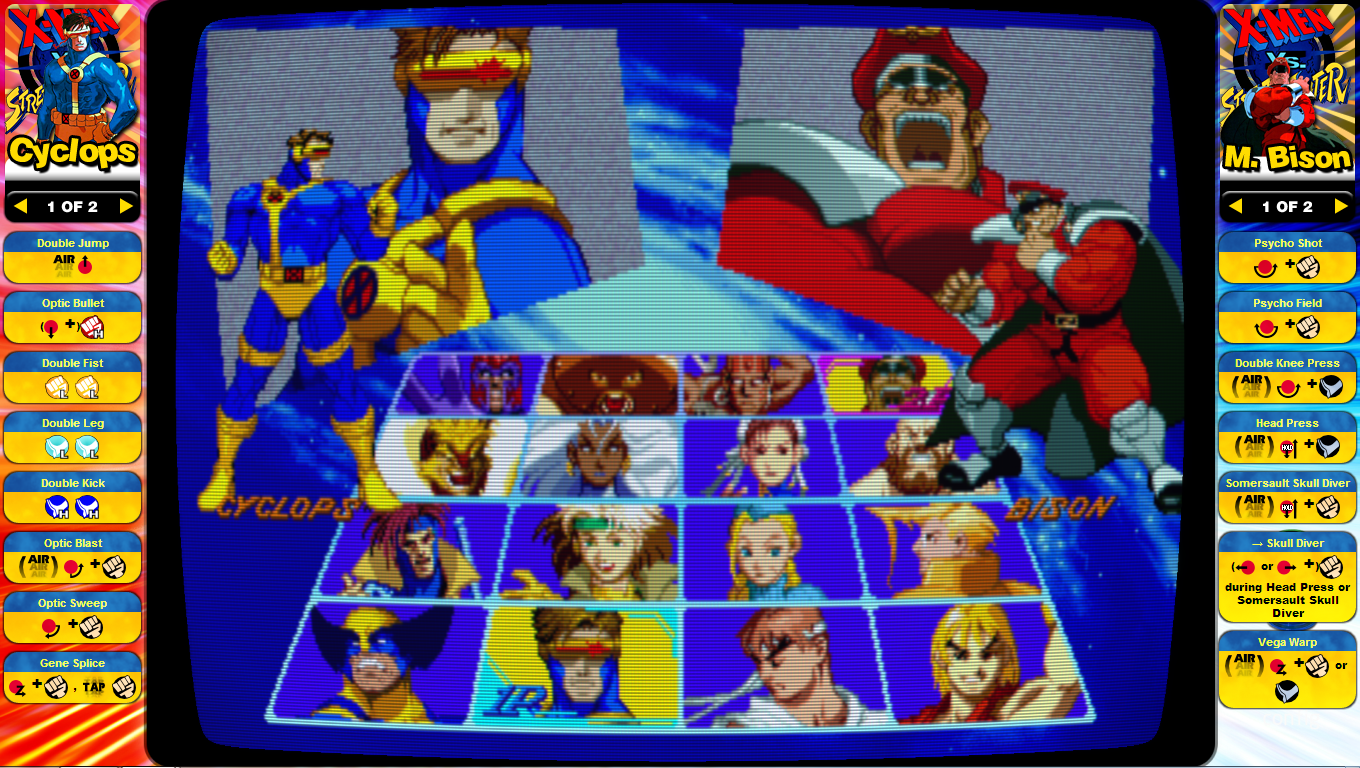

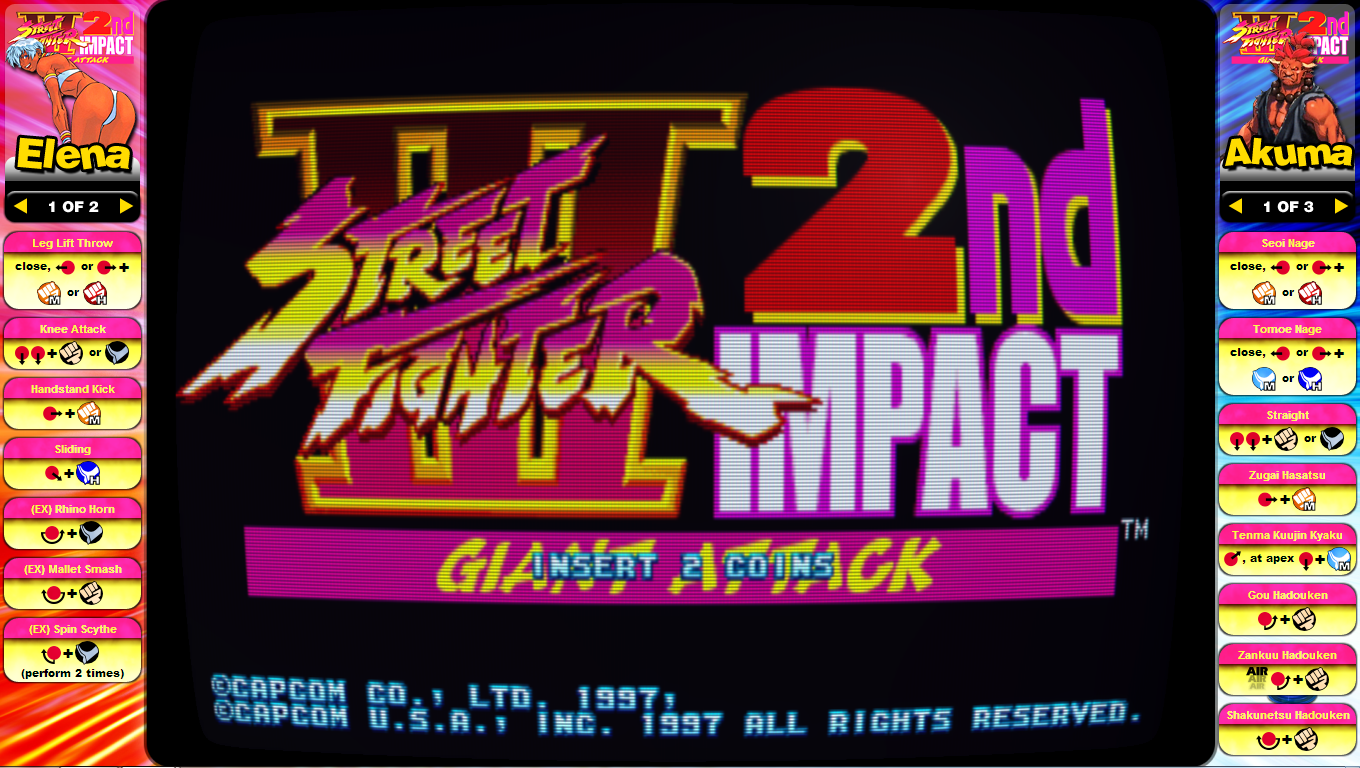
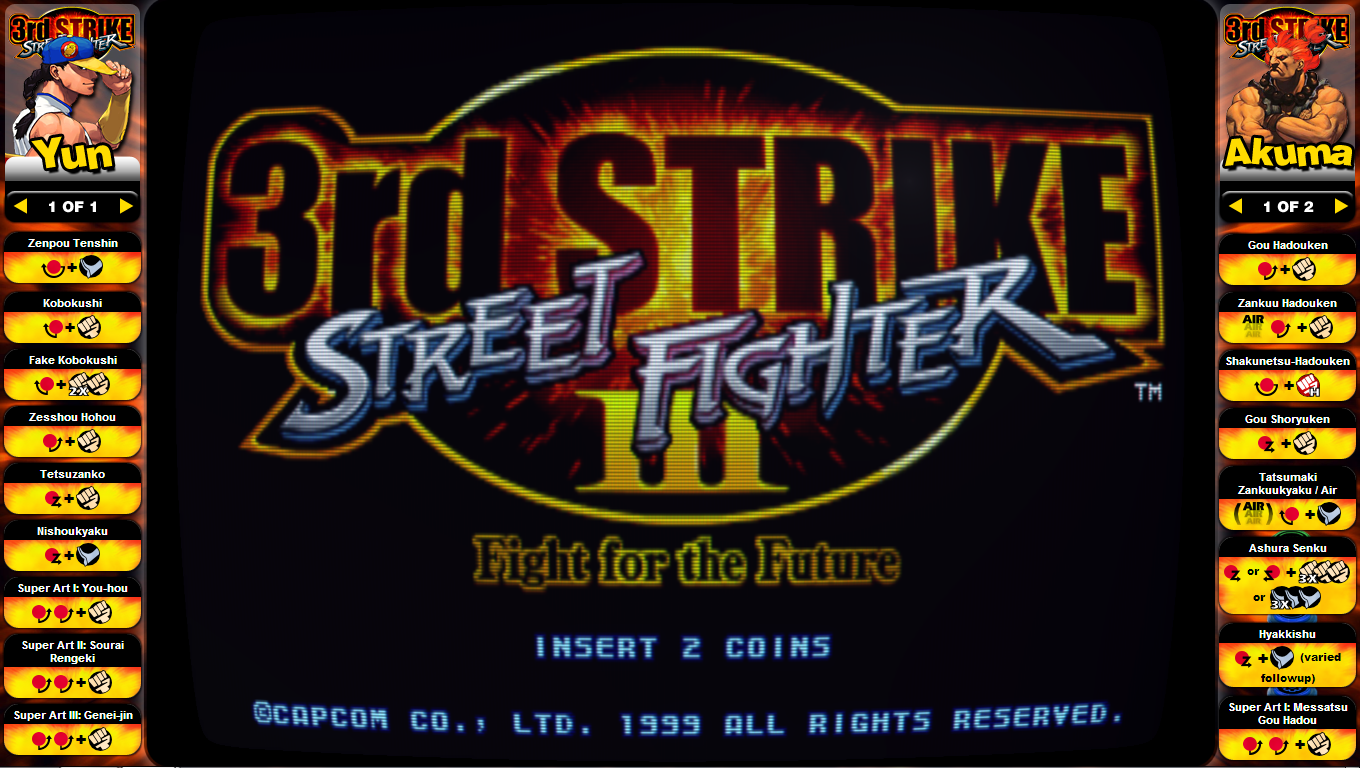
Here is my first set of instruction cards with all the character moves for various street fighter games (see list below). The instruction cards are for use with hyperlaunch, which allows you to display these cards on the left and right side of the screen. If you are using a widescreen tv, now you can fill up the empty bezel space with these. You can also assign specific buttons to change which instruction card is displayed. This makes it really convenient when you are trying to learn the moves of a street fighter character.
To use these instruction cards, you will need to have a MAME emulator with roms, and use Hyperlaunch to launch your games. I’ve added instructions below on how to set up Hyperlaunch once you’ve installed it, to display the instruction cards.
Download Instruction Cards For:
How to configure HyperlaunchHQ:

The red arrows point to the fields you need to edit in the Hyperlaunch HQ interface.
Extract the folder from the zip file you downloaded and and put it into the following hyperlaunch directory:
Hyperspin/Hyperlaunch/Media/Bezels/MAME/
The folder containing the instruction cards needs to match the rom’s name.
Under Global: Settings/Instruction Cards/Positions/ (leftCenter/rightCenter)
“leftCenter” and “rightCenter” will display the files you just downloaded on the left-center and right-center side of the screen. If you want the instruction cards to display in a different position, just change the setting in HyperlaunchHQ and rename all the files to match the new position.
Under Global: Settings/Instruction Cards/Scale Factor/(1)
The scale factor set to “1” will show the artwork at actual size, so it will look sharp.
Under Global: Settings/Instruction Cards/Visibility Key/(choose any key)
Choose a key to show/hide the instruction cards.
Under Global: Settings/Instruction Cards/Keys Change Mode 3 – Individual Instruction Cards/IC 1 Previous Key/ (choose any key)
This key will show the previous instruction card on the left side of the screen.
Under Global: Settings/Instruction Cards/Keys Change Mode 3 – Individual Instruction Cards/IC 1 Next Key/ (choose any key)
This key will show the next instruction card on the left side of the screen.
Under Global: Settings/Instruction Cards/Keys Change Mode 3 – Individual Instruction Cards/IC 2 Previous Key/ (choose any key)
This key will show the previous instruction card on the right side of the screen.
Under Global: Settings/Instruction Cards/Keys Change Mode 3 – Individual Instruction Cards/IC 2 Next Key/ (choose any key)
This key will show the next instruction card on the right side of the screen.
Once you’ve set up all your keys, run a game (like street fighter II) with hyperlaunch and use any of the ” IC 1/IC2″ keys to show the instructions cards. Currently Hyperlaunch doesn’t automatically display the cards when you launch a game, so you have to hit one of the keys you configured to display them.
This post contains most of the Street Fighter games for use with MAME. I will upload the remaining game instruction cards in another post. I hope these cards help you guys learn new character moves! If you have any questions, let me know.
If you found this useful and want to show your
appreciation of my work, consider:
Second Monitor Game Info Using Hyperspin, EDS and Slideshowpro
I had been looking for a way…Instruction Cards for Mortal Kombat and Other Arcade Titles
This set of instruction cards features the…Instruction Cards For Hyperlaunch With Moves List For Various Street Fighter Games
Here is my first set of instruction…Arcade controls for Mame and Hyperlaunch instruction cards
I designed a top mounted box with…Instruction cards of Street Fighter Alpha / Zero 2 for Hyperlaunch
I went back to the drawing board…Street Fighter 3 Third Strike Moves List Instruction Cards For Hyperlaunch
I recently upgraded my install of Hyperlaunch…

- Custom 3D-Printed Mod For Thrustmaster TH8s Shifter - July 5, 2025
- Arcade style shifter mod for Thrustmaster TH8s - July 5, 2025
- Launch Yaba Sanshiro Emulator From Launchbox, Sega Saturn Emulator - June 10, 2025
- Quick Release Hub On The T300rs Steering Wheel Or T300 Servo Base - January 15, 2025
- Button Box For T300RS Wheel 3d Printed, NFS Hot Pursuit Buttons - December 10, 2024
- Button Box Idea For NFS Hot Pursuit - October 11, 2024
the instruction card links are broken. can you re host?
Hi Marlon,
I would love to download these street fighter cards. Is there a chance you can re-upload them?
Hi, the hyperlinks have been fixed. Thanks and enjoy.
thanks Marlon! I don’t use hyper spin, but ill see if I can get these to work with Mame. Appreciate the re-upload.
Hi Marlon, still using these to this day! I just noticed Omega Red (bottom right character in character select menu) is missing from mshvsf. Did you ever create those and forget to add them? Thanks
If I remember correctly (I could be worng…), I couldnt find the moves list for that charecter. If you have the moves in html or graphic format, send me a link and I’ll update the creatives. Thanks for the feedback.
Does this link help?
https://marvelvscapcom.fandom.com/wiki/Marvel_Super_Heroes_vs._Street_Fighter_move_list#Omega_Red
Yes!, thanks and I’ll update it soon.
Thanks to some amazing work by some other community members, it’s now possible to show your selected characters card when playing via MAME automatically. I’ve also made progress with a MAME plugin that can also cycle your characters cards with a dedicated hotkey. This means you can now auto show the selected characters cards automatically without having to cycle through them all. I’ll be updating git soon with a link to the plugin, which I can send you if interested.
Also, did you ever get around to create cards for other street fighter type games like X-men Children of the Atom, and Street Fighter EX etc.?